Overview #
- You can add content, including paragraphs, images, galleries, lists, etc., to a post or page via Blocks.
- There are two ways to add blocks: via within the Content Editor, or via the All Blocks/Patterns Panel.
Activate a New Block #
- To add a new block type, just use the Return key on your keyboard.
- To add another list item within a List Block, use the Return key.
- To add another block type after a List Block, go to the three-dot button on the Block Toolbar, and select on “Select parent block (list)“, then click “Insert after” on the pop-up.
Choose Block Type Via Within the Content Editor #
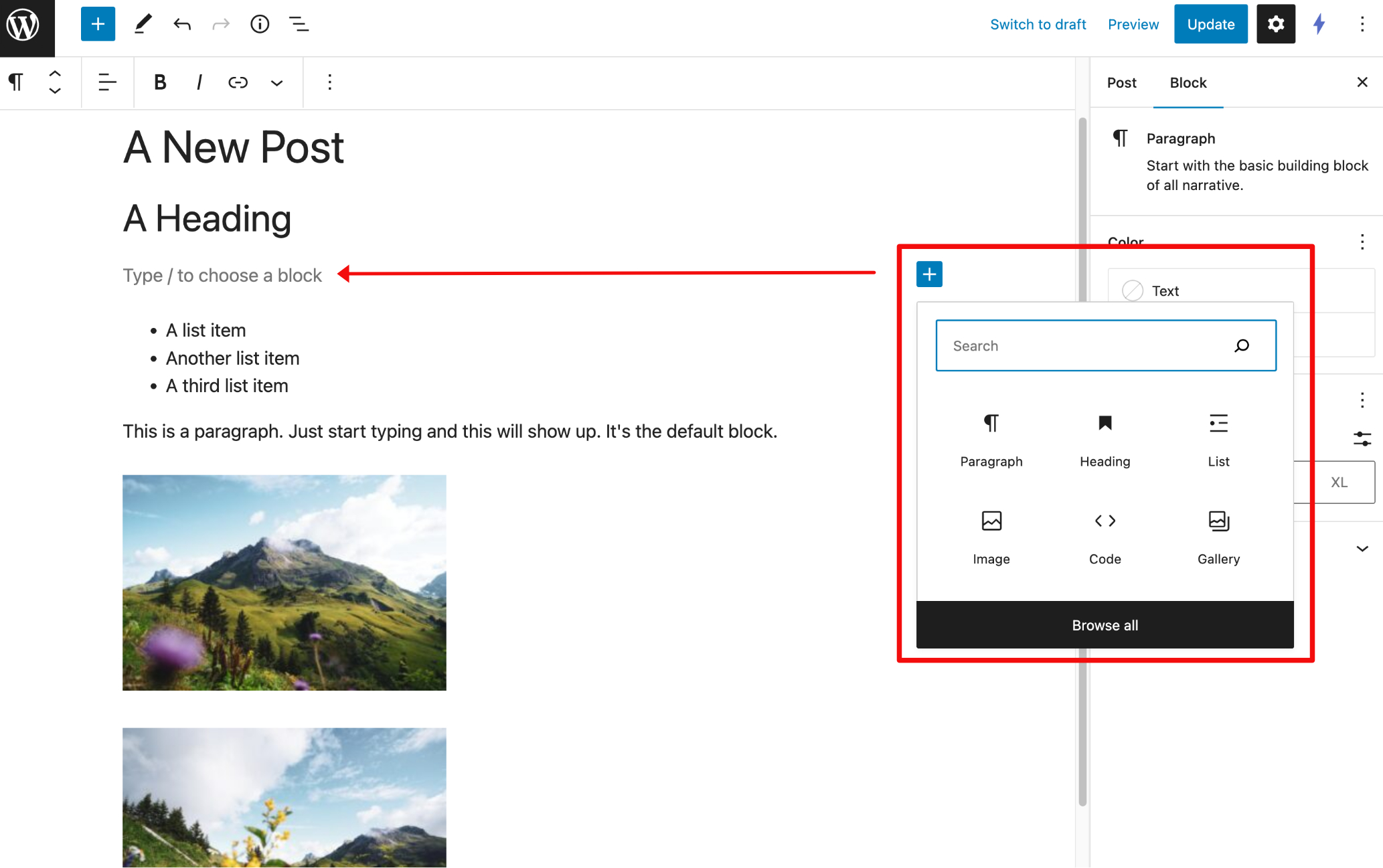
- Just click on the black plus sign button — which turns blue when it’s activated — in the Content Editor which will take you to a mini dialogue of commonly used blocks.
- If you want to see other block types, just click the “Browse all” button at the bottom of the mini dialogue box.
- Click on the block type you want, and it will appear in the blank block space in the Content Editor.
Choose Block Type Via the Top Toolbar #
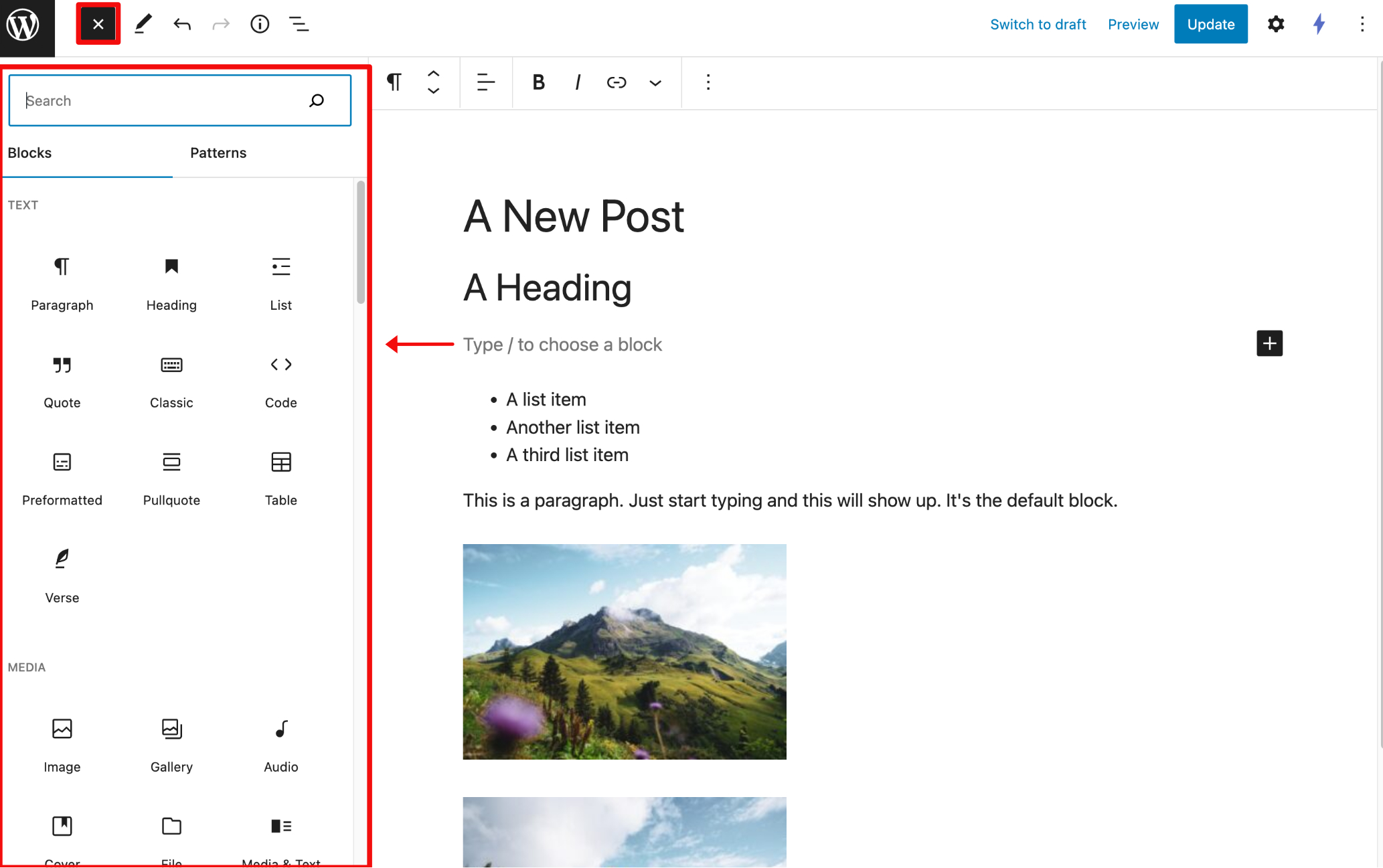
- If you want to add content by seeing all block type options, just click the blue plus sign button — which turns black when it’s activated — on the Top Toolbar.
- The All Blocks/Patterns Panel will slide out from the lefthand side of the Content Editor.
- Click on the block type you want, and it will appear in the blank block space in the Content Editor.