
Skip to content
Au Fait Branding

Au Fait Branding

Manon's Guidelines & Tutorials

backups blocks brand browsers content management systems databases design domains emails hosting images includes screencast logos navigation pages performance plugins posts security SEO social media software SSL taxonomy themes web services websites wordpress

What is…

  • Branding
  • Cache
  • CDN
  • CMS
  • Domains
  • Email Hosting
  • SSL Certificates
  • Web Hosting
  • WordPress
  • WordPress Blocks

Difference between…

  • Block Patterns and Reusable Blocks
  • Image Formats
  • WordPress Pages and Posts
  • WordPress Taxonomies

How to…

  • Add Content Blocks to a WordPress Post/Page
  • Copy/Paste Blocks Between Pages/Posts
  • Navigate & Edit Blocks Within a Post or Page

Recommending…

  • Essential WordPress Plugins
  • Social Media Resources

OCM

  • How To Convert Posts to Blocks
View Categories
  • Home
  • Docs
  • How to…

Navigate & Edit Blocks Within a Post or Page

< 1 min read

Overview #

  • The page/post editor can be very confusing if you have many blocks on a page.
  • When that happens you can view blocks via the Block List View. If you want to focus even more on the block you’re editing, you can turn on Spotlight Mode.
  • You can also edit a block via the sidebar Block Settings and the Block Toolbar.

Block List View #

  • Access block navigation via the three-line Block View List button, located at the top of the page editor on the lefthand side.
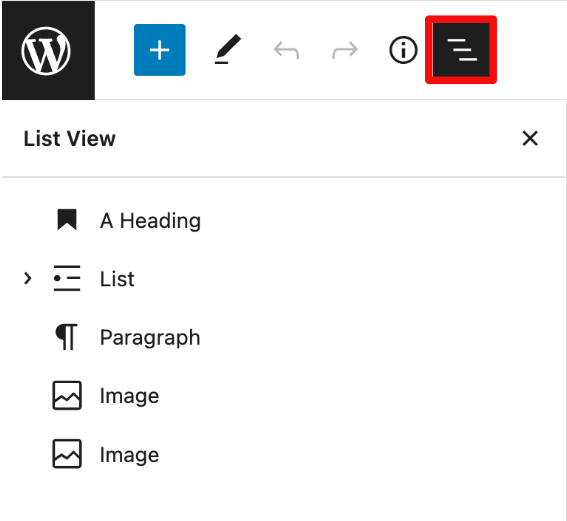
Block List View Slideout

Spotlight Mode #

  • To focus on one block at a time, click on three-dot Page Editor Option button.
  • In the “View” section, click on “Spotlight Mode” to check it off.
  • To see all blocks at once again, click on “Spotlight Mode” to uncheck.
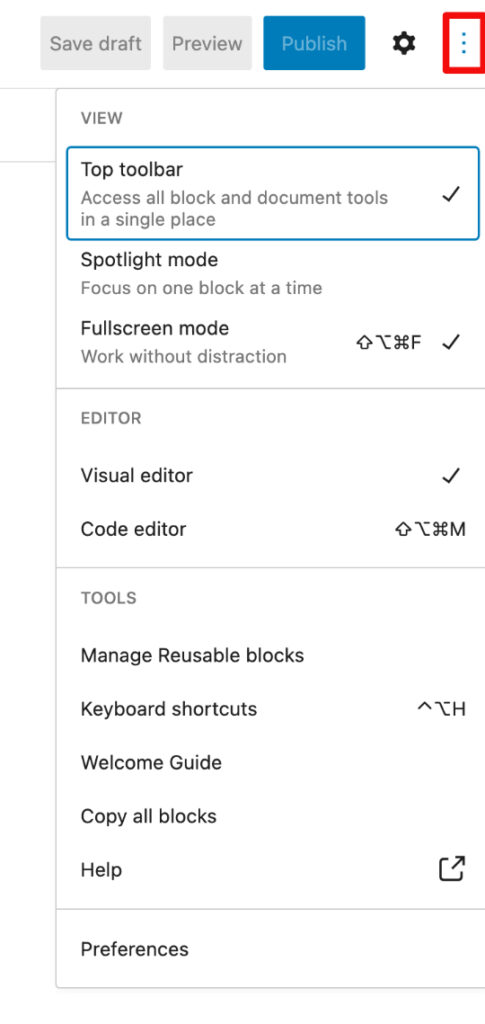
Block/Page Settings Pop-up
Page Options Pop-up

Block Settings #

  • To access the Block Settings, go to the Page/Block Settings gear button on the top lefthand side of the screen.
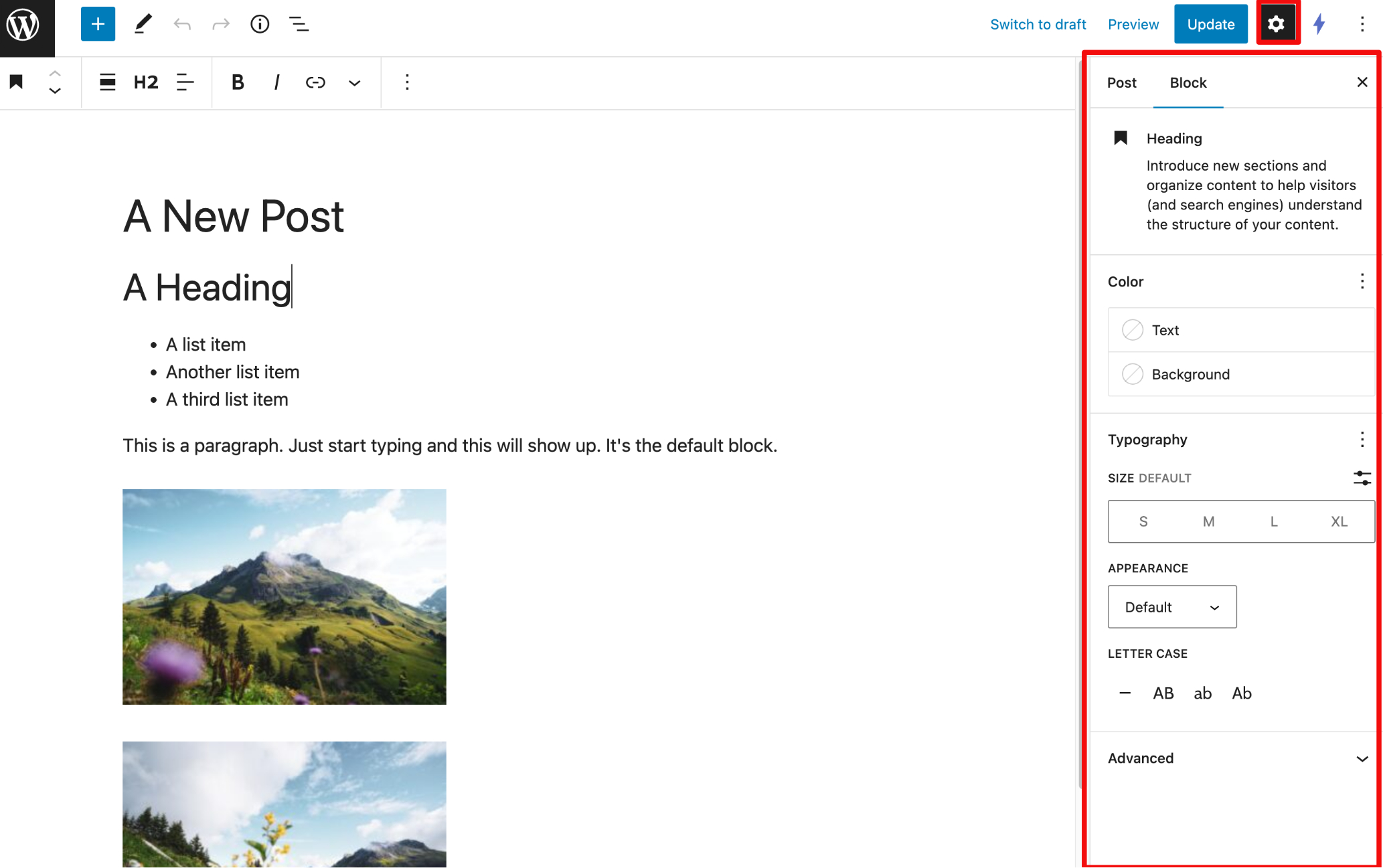
Block Settings
Block Settings

Block Toolbar #

  • To access the Block Toolbar and configure where you want it, go to the three-dot Page Editor Options button on the top lefthand side of the screen.
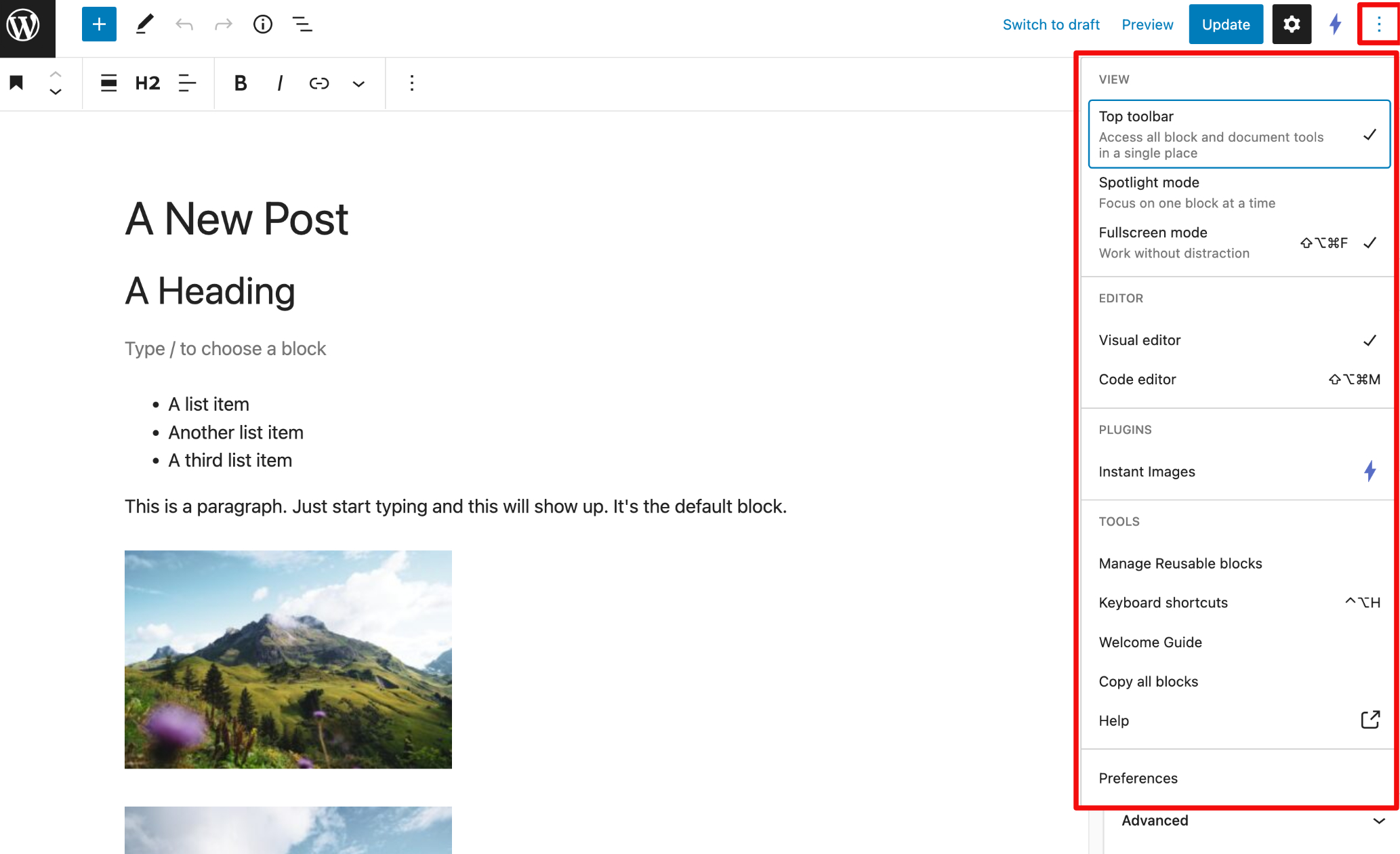
Page Options Panel
Page Editor Options

Screencast #

blocks, content management systems, includes screencast, navigation, websites, wordpress
Still stuck? How can I help?

How can I help?

Updated on Wednesday, April 5, 2023
Table of Contents
  • Overview
  • Block List View
  • Spotlight Mode
  • Block Settings
  • Block Toolbar
  • Screencast
© 2026 Au Fait Branding • Built with GeneratePress